
MiniMax-H3-Image on a Mac: make and edit pictures offline
Make pictures up to 16 MP and combine up to 6 pictures with MiniMax-H3-Image on your Mac. Check the licence, memory needs and measured times before you start.
tutorial · minimax-h3-image · images · mac · apple-silicon
MiniMax-H3-Image makes photographs and film frames from a prompt, up to 16 megapixels, and edits pictures you give it. This big open picture model came out on 10 November from MiniMax, the team behind Hailuo video. You can run it on your Mac.
We make Phosphene, a free and open-source Mac app. It includes MiniMax-H3-Image for free, editing too. We measured the times below on our own Mac.
First, the licence
Read this before downloading. The MiniMax-H3-Image Community License Agreement does not cover the European Union, the United Kingdom, South Korea or the United States. Elsewhere, commercial use is allowed up to USD 1 million in annual revenue. Above that limit, or to run a hosted service for others, you need MiniMax’s written permission. Label any pictures you publish as machine-made. You may not use them to improve another AI model.
Phosphene shows you the licence and asks you to accept it before downloading. It does not check where you are, so you’ll need to read it yourself.
What your Mac needs
| Chip | Apple Silicon |
| Memory | 36 GB or more. Our tests peaked at 27.5 GB making pictures and about 29 GB editing. Phosphene leaves room to spare and hides the model on smaller Macs |
| Disk | About 69 GB to download. Phosphene prepares the model once on your Mac, then keeps about 21 GB. Allow 30 GB free while it prepares |
| Also | Install Hailuo H3 first. The picture model uses its engine |
For everything else your Mac can run, check Will my Mac run it?. It lists what’s available by memory and chip.
How long a picture takes
We measured these on an M4 Max with 64 GB. Each time covers the whole render, from prompt to finished picture:
| What | Size | Time |
|---|---|---|
| Draft | 4 MP | 119 s |
| Standard | 8 MP | 227 s |
| High | 16 MP | 513 s |
| Edit one picture | 4 MP | 291 s |
| Combine two pictures | 4 MP | 550 s |
We have no measured times on other chips yet. A smaller chip takes longer.
Make a picture
1. Check the licence and your Mac
Read the licence section above, then open Apple menu → About This Mac. You’ll need 36 GB of memory or more.
2. Install Phosphene and Hailuo H3
Get Phosphene from the download page and drag it to Applications. Install Hailuo H3 next: click Hailuo H3 in the engine switch, accept its licence, then click Download Hailuo H3. The Hailuo H3 guide walks through it.
3. Download MiniMax-H3-Image
On the Images tab, choose MiniMax-H3-Image under Model. Accept the licence and click the download chip beside it, about 69 GB. The files come straight from MiniMax at a fixed version. Phosphene prepares them on your Mac once.
4. Make a picture
Give it a long, specific prompt in plain English. Describe the subject and where it is, then the light. Add the lens and mood you have in mind. This model likes detail, so there’s no prize for brevity here.
Choose an Aspect and a Version: Draft (4 MP), Standard (8 MP) or High (16 MP). Click Generate.
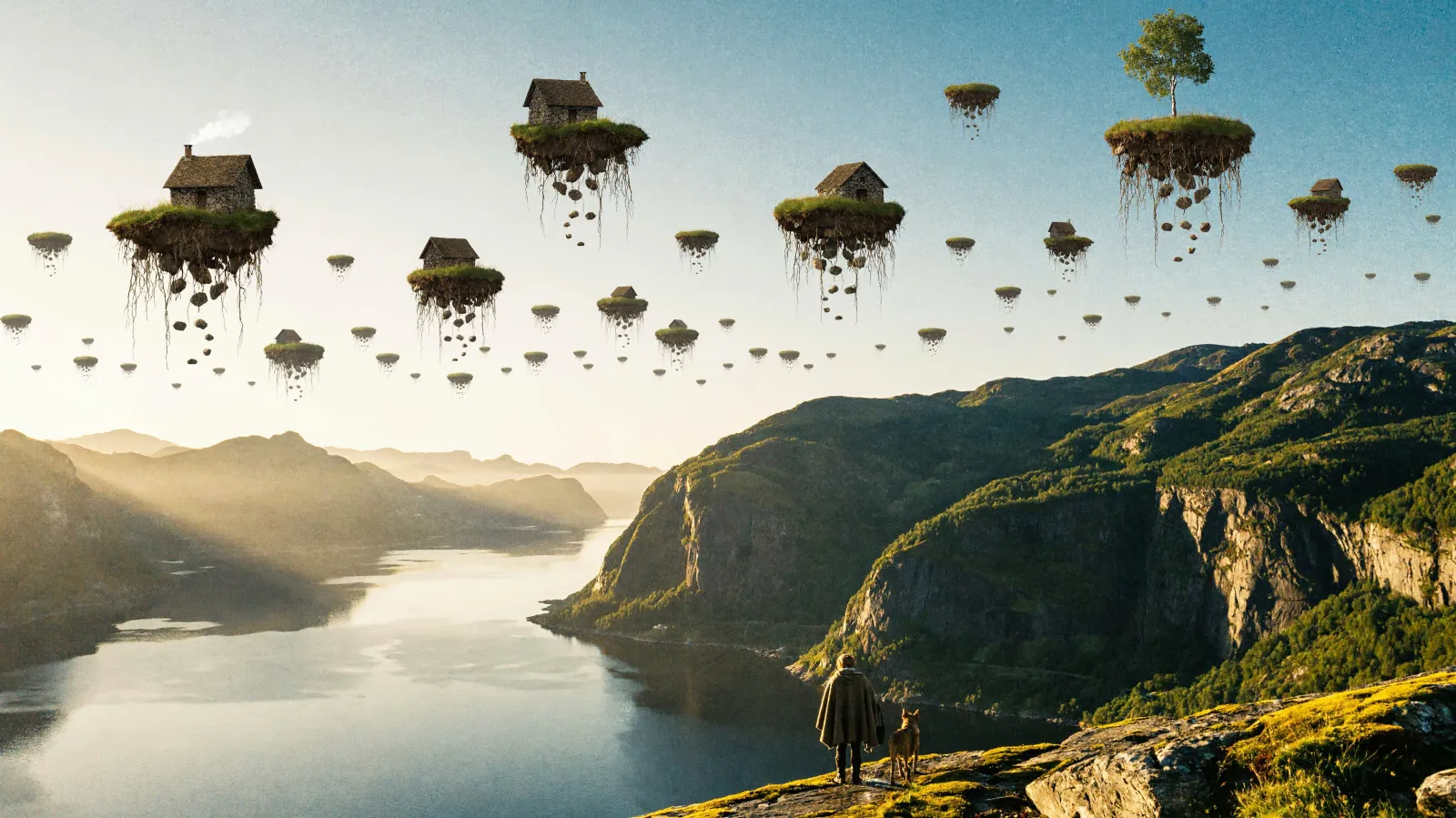
This is a 16 MP High render. It took 569 seconds on the M4 Max.
Try your ideas at Draft first, and keep a Draft you like. Using the same seed at a larger size gives you a new composition rather than a bigger copy. You can also render High with two seeds and pick the result you prefer.
5. Edit a picture
Drop a picture into Picture 1 and describe what you’d like to change. Aspect starts on Same as picture, which keeps the original shape. Choose a different shape and the model fills the new area. You could make a tall poster wide, for example.
To combine pictures, add them to Picture 2 and onwards, up to Picture 6. Refer to them by name in the prompt: Put the hat from Picture 2 on the man in Picture 1. Picture 1 is the one that changes.
Want to carry on with a finished picture? Choose More → Edit this picture to put it back in.
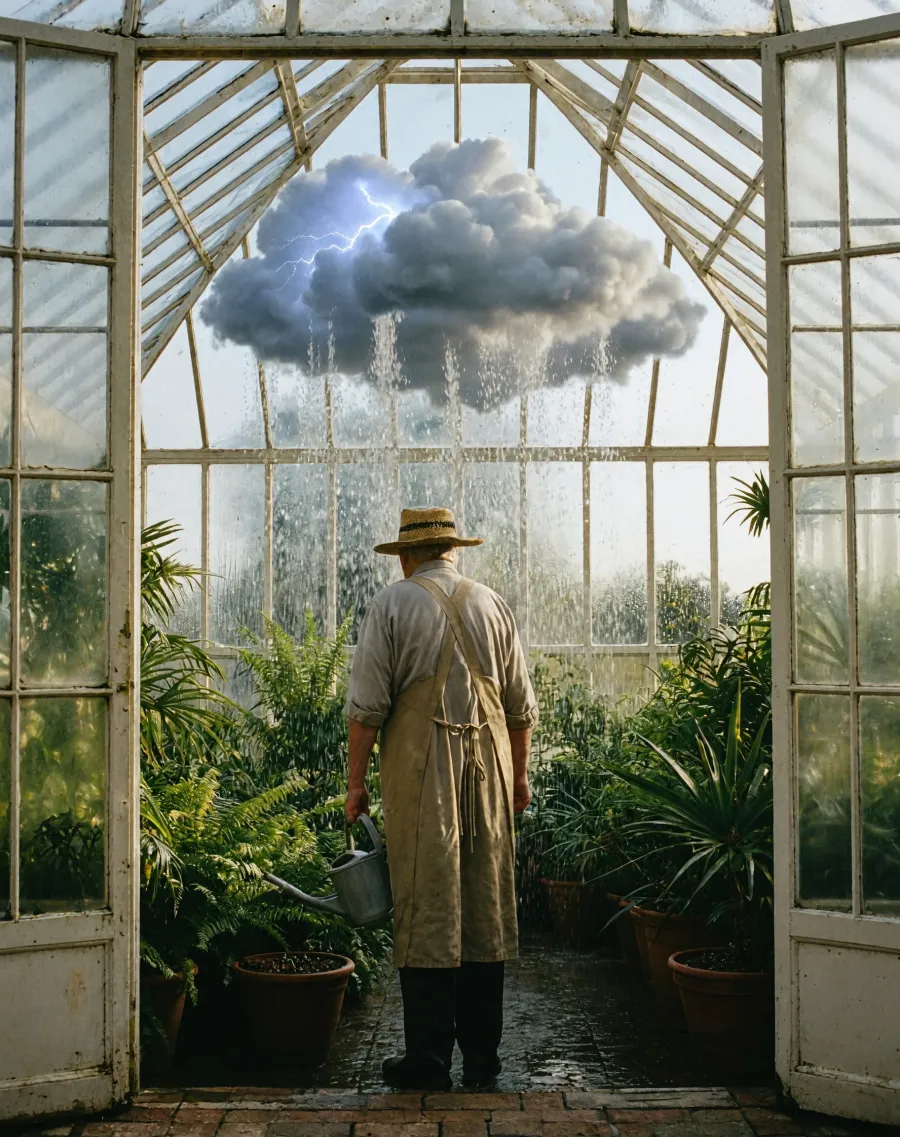
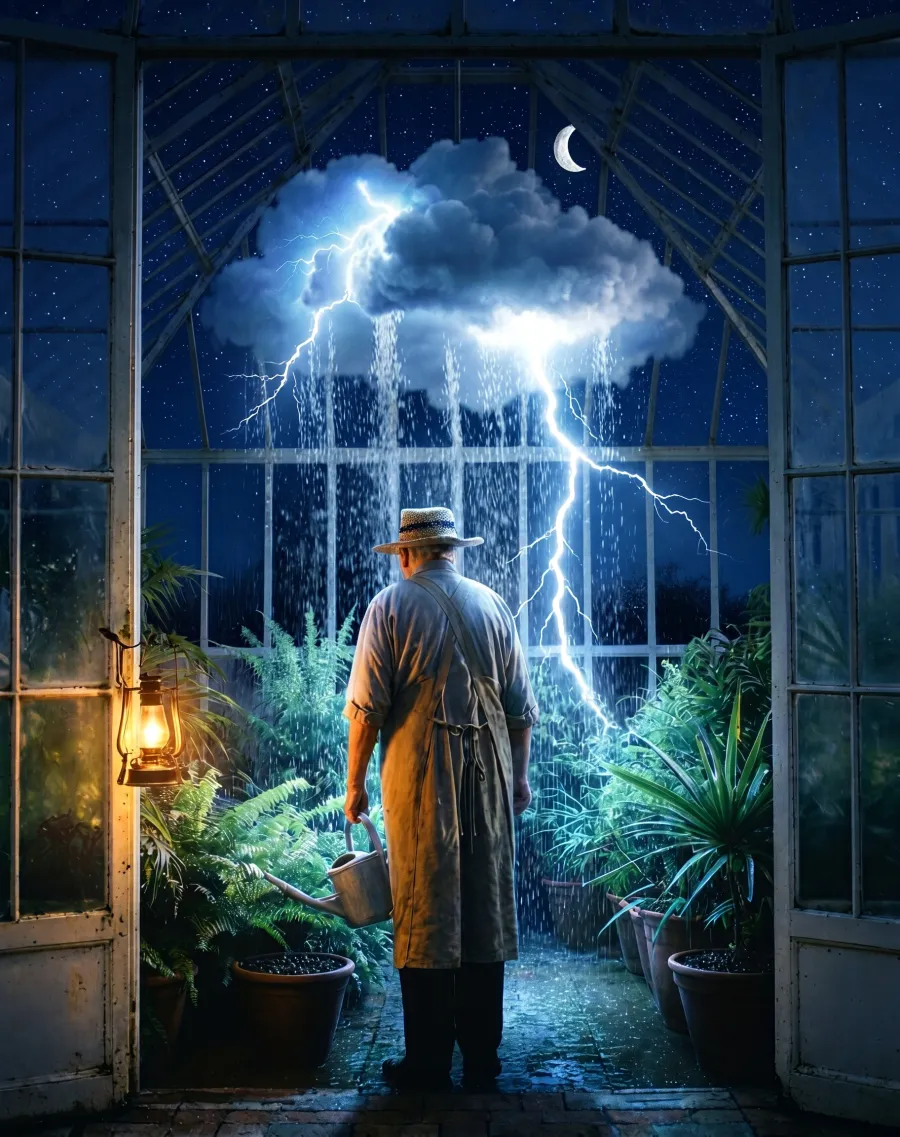
For this edit, the prompt asked for night, with the cloud’s lightning as the main light. It also asked to keep the gardener, the plants and the framing the same. The edit took 299 seconds.
Common problems and fixes
MiniMax-H3-Image isn’t in the Model list. The app hides it on Macs with less than 36 GB of memory.
The chip asks for Hailuo H3. Install Hailuo H3, then return to Images.
The download stops for disk space. Free up 30 GB and start the download again.
Small text comes out slightly wrong. Tiny signs can be troublesome. Try another seed, or make the text bigger in the frame.
The High version looks worse than the Draft. Changing the size makes a new picture. Keep the Draft you liked, or try High with another seed.
Supporting the project
Making and editing pictures with MiniMax-H3-Image is free in Phosphene. If you’d like to support the project, Pro brings speed-ups for video and pictures on bigger Macs.