
Turn a photo into an AI video on your Mac
Image to video with AI on your Mac, free and offline with Phosphene. Choose a mode, describe the motion and get an AI video with sound from your photo.
tutorial · image-to-video · ltx-2.5 · mac
A photo gives you the scene. Your prompt adds the motion. On a Mac, you can make a clip with sound locally and for free.
We make Phosphene, the free and open-source Mac app used here. It runs LTX-2.5. The render times below are measured.
A sideways phone photo, turned upright, became this 9:16 clip with LTX-2.5.
What your Mac needs
- An Apple Silicon Mac (M1 or newer) with 16 GB of memory or more. Below 48 GB you get smaller frame sizes.
- About 28 GB of disk for the video models. Check your Mac on Will my Mac run it?.
- A few minutes per clip. For a 5-second Balanced clip at 480p (text and picture clips counted together), medians from Phosphene users run from about 1 minute on an M5 Max to 10 min 40 s on a 16 GB M4. Every chip.
The manual ways
To run an image-to-video model yourself with Python, use the PyTorch reference code with Apple’s Metal backend, or a command-line community port for Apple’s MLX framework.
Both work. You manage the Python environment, model downloads and flags yourself. PyTorch also needs patches and plenty of Mac memory. Our LTX on a Mac guide covers the details.
The easy way: Phosphene
1. Install Phosphene and the video models
Get it from the download page, drag it to Applications and open it. Check the model list and sizes, then confirm the base download of about 28 GB.
2. Choose Image mode
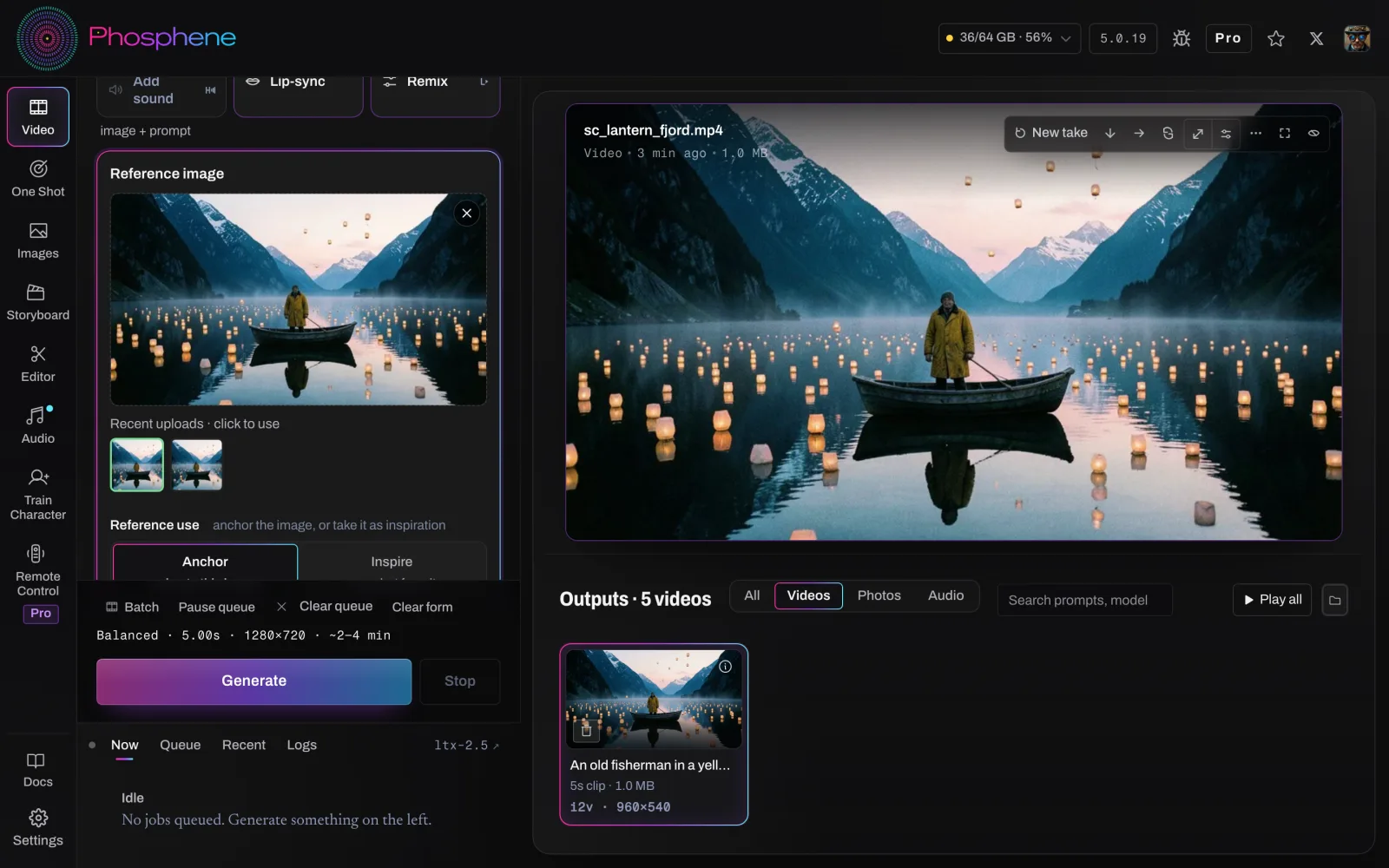
On the Video tab, keep the model on LTX 2.5 and pick Image.
3. Drop in your picture and pick Anchor
Drop a photo into Reference image, then choose a mode:
- Anchor uses your picture as the first frame. The clip moves on from there. This is what most people mean by image to video.
- Inspire takes the subject and look of your picture into a new shot. Your picture won’t be frame one.
The clip follows the picture’s shape, so a portrait photo gives you a portrait clip.
4. Describe the motion and the sound
The model can already see the picture. Describe the motion and camera work, then add what you want to hear:
The lanterns closest to the boat lift gently off the water and float upward. The fisherman watches them. Static camera. Audio: water lapping on the hull, a slow creak of the boat, a distant gull.
5. Generate
Start with Balanced and 5 seconds, then click Generate. The clip lands in Outputs, with sound.
You can also make a picture in Images, then choose Animate to send it to image to video.
More than one picture
- Start & end frame takes a first and last frame and works out the motion between them.
- Keyframes lets you place stills at chosen moments to guide where the shot goes (48 GB of memory or more).
- Extend adds up to 15 more seconds to a clip you like.
Common problems and fixes
The clip doesn’t look like my picture. Choose Anchor to start from your picture. Inspire makes a new shot.
Almost nothing moves. Name what should move and how. Keep it to one or two actions per 5 seconds.
Faces or hands warp. Use a sharp picture with the subject large in the frame. Ask for smaller, slower movements, or try another take with a new seed.
The clip has the wrong shape. It follows the picture. Crop to the shape you want before generating.
The render stops with a memory message. Close heavy apps, or try a smaller size or shorter length.
Everything here is free. If you’d like to support Phosphene, Pro gets some speed-ups first, including faster LTX clips on Macs with 32 GB or more.